

Since Silvana separates off-chain matching from on-chain DvP settlement, the terminal makes every trade state visible: from active order and match result to counterparty action and final settlement.
Market Workspace
The market workspace is where you start from.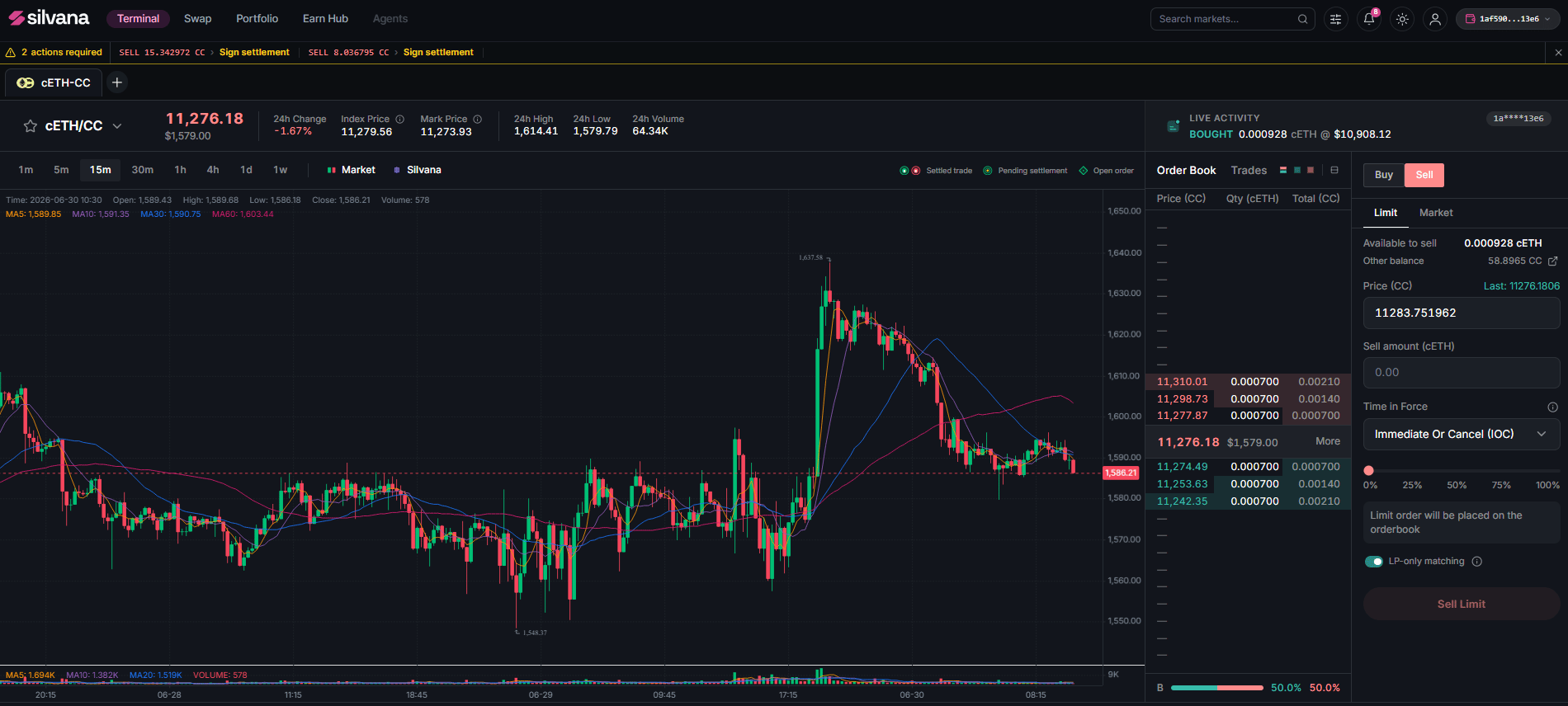
The same workspace keeps both market and trade data visible. You can select a market, place an order, monitor the book, and track whether your trade is still open, already matched, or waiting for settlement actions.
Prerequisites
To start trading, you have to:- be onboarded;
- connect your wallet to your account;
- be logged in.
Check the list of supported wallets.If your wallet becomes disconnected for any reason, you can reconnect it using the Connect button in the top-right corner of the interface.
Step 1. Selecting a Market
Use the market selector to switch between available trading pairs. Each market opens in the terminal with its own chart, price data, order book, and order form.Favorite markets can be pinned for faster access. Open market tabs allow you to move between several pairs without losing context.
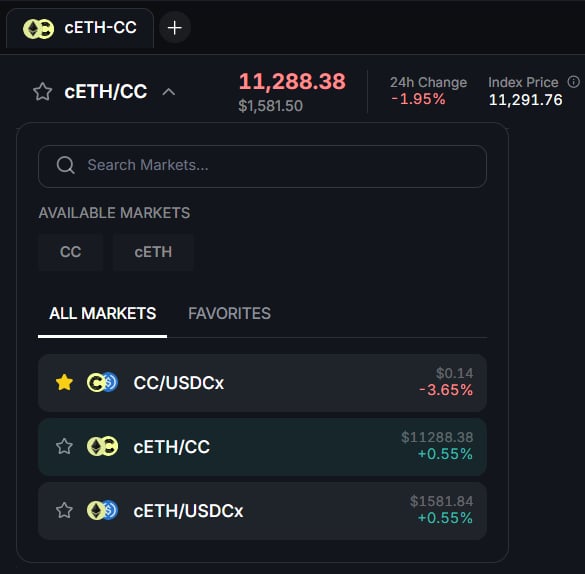
Step 2. Placing an Order
Choose the side, order type, price, amount, and time in force from the order form.- For a limit order, the order is placed in the private orderbook at the specified price and quantity.
- For a market order, the terminal uses available liquidity to execute immediately based on the current market state.
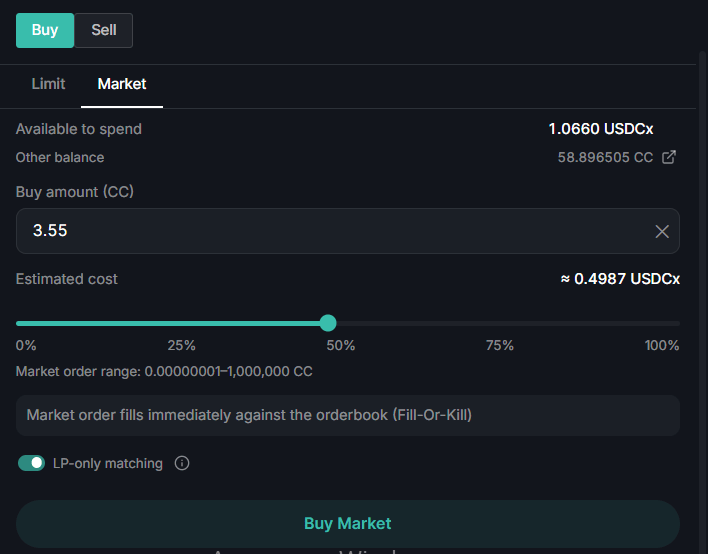
Step 3. Review Order Details
After you place an order, the terminal creates an order record. Open the order details to check the order status, fill progress, order parameters, and related settlement records.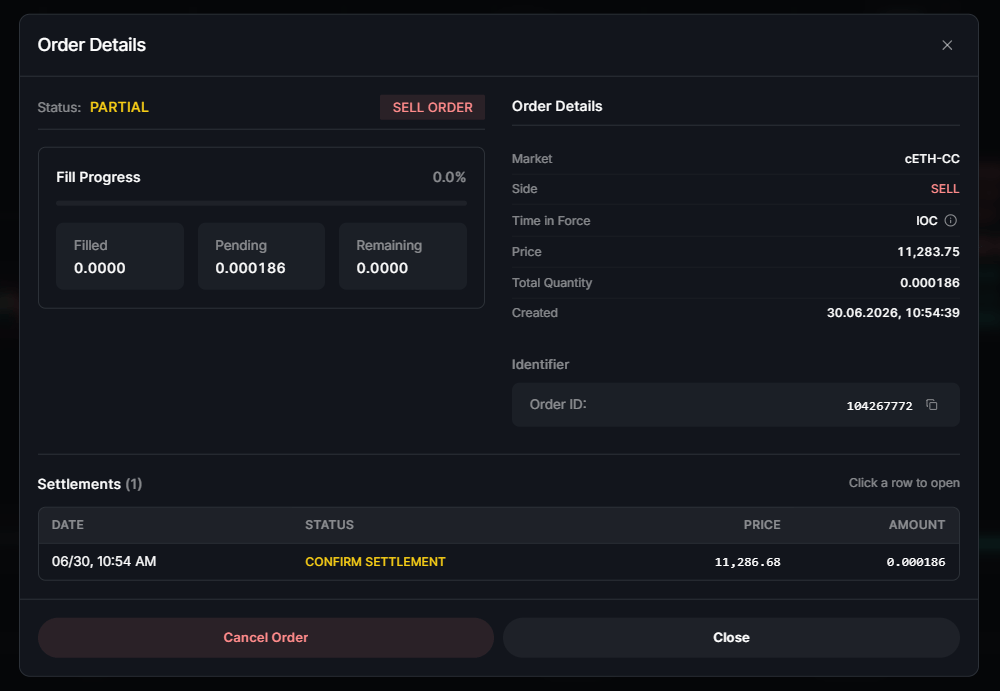
Step 4. Track Settlement Proposal
Follow the proposal status to see which side must act next. The settlement flow may require confirmation, DvP signing, fee payment, token allocation, or completion.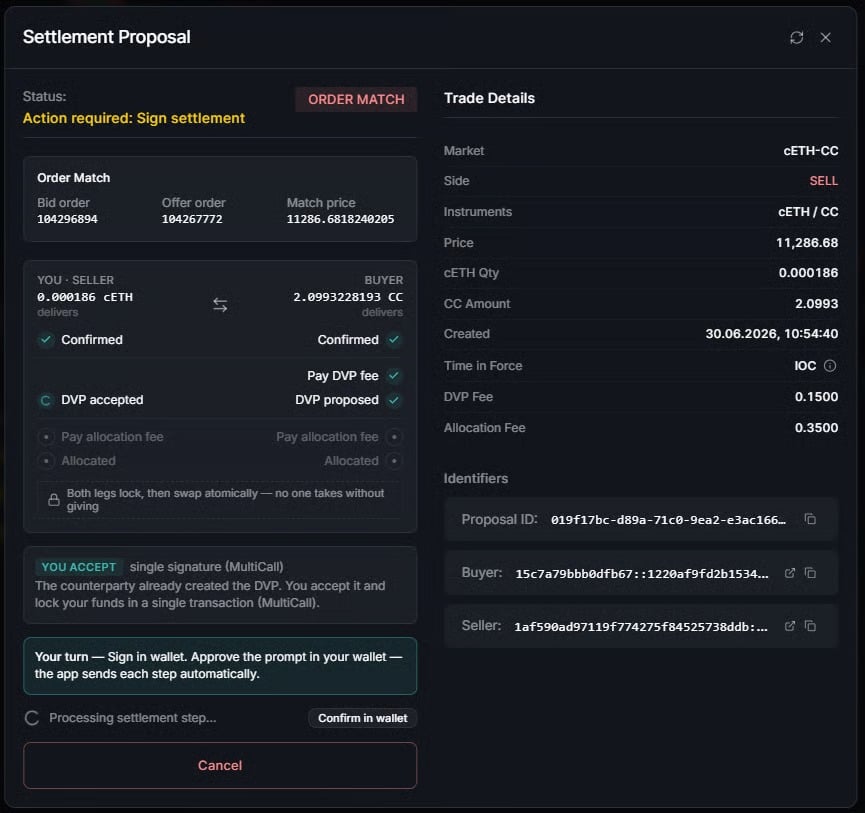
Show settlement action alerts
Show settlement action alerts
The Terminal helps you find settlements that need attention.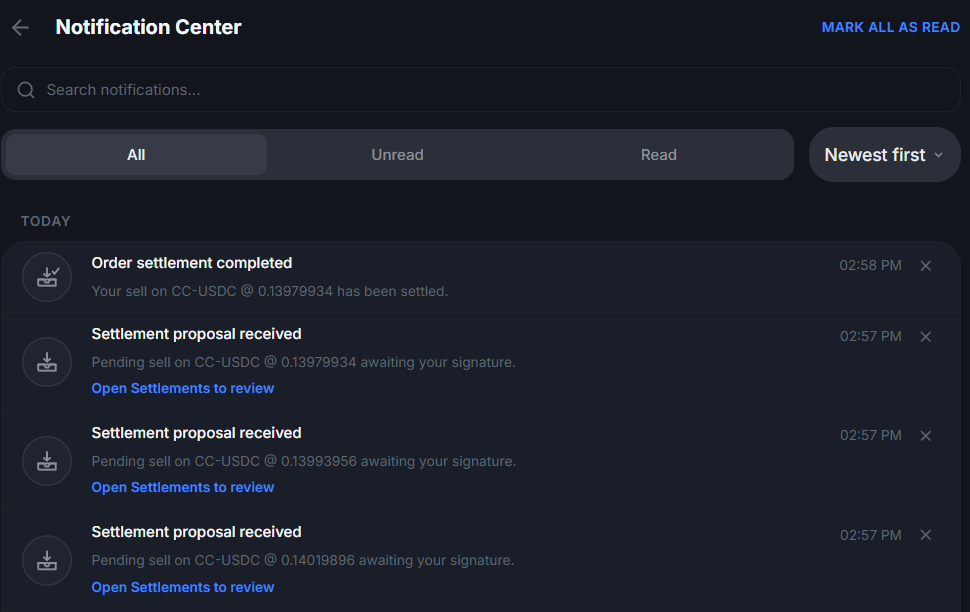
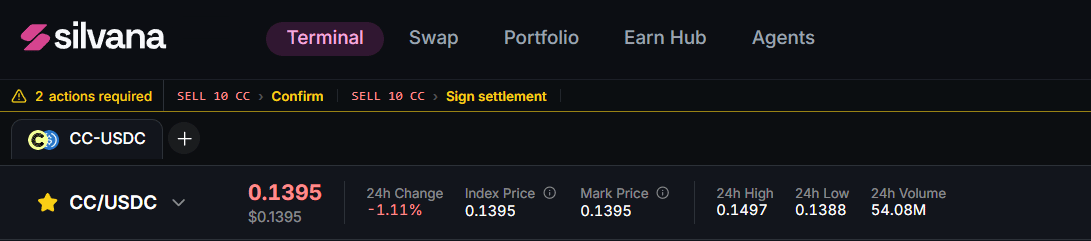

- Notifications show when a new settlement proposal is received. Click Open Settlements to review the related settlement details.
- Action strip appears at the top of the terminal when one or more settlements require action. Use it to jump directly to the settlement that needs confirmation or signing.
- Settlements table marks the relevant row, so you can quickly see which settlement is waiting for your action.
Step 5. Review Your Activity Panel
Once settlement is complete, the trade appears in the activity panel at the bottom of the terminal.
Congratulations – your trade has been completed and recorded in the terminal!
Wallet Confirmations
Some settlement steps may require wallet confirmation. The terminal indicates when action is required on your end.Key Takeaway
Before submitting an order, make sure the trading details are accurate and that the status shown in the terminal after the order is placed matches the status.- Check the selected market before placing an order.
- Make sure the order side is correct: Buy or Sell.
- Review the price, quantity, available balance, and Time in Force.
- For market orders, check the available amount and order range before confirmation.
- After the order is placed, follow its state in the terminal.
- If the order enters settlement, track the proposal status closely.
- When the terminal displays “Action Required,” approve the requested step.
- If the terminal is waiting for the buyer or seller, no action is required from the other party until they complete their step.
- Settlement is complete only when the proposal status changes to Settled.